Using JIBB Room on a Cisco Device (MTR Mode)
Follow the instructions on this page to learn how to use JIBB Room on your Cisco MTR (Microsoft Teams Rooms) Device and successfully digitize and share your meeting room whiteboard with others online.
1. Intro to JIBB Room
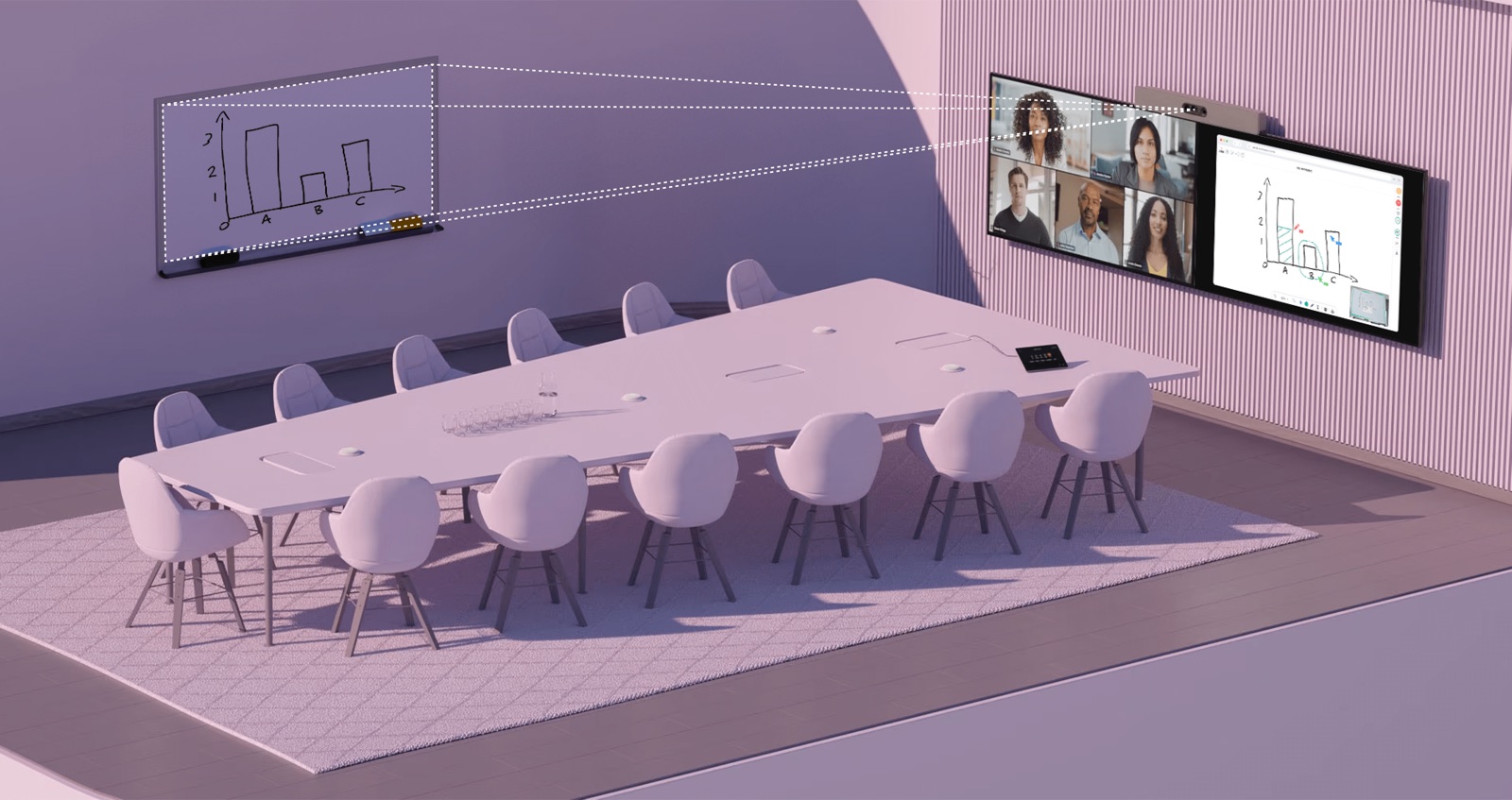
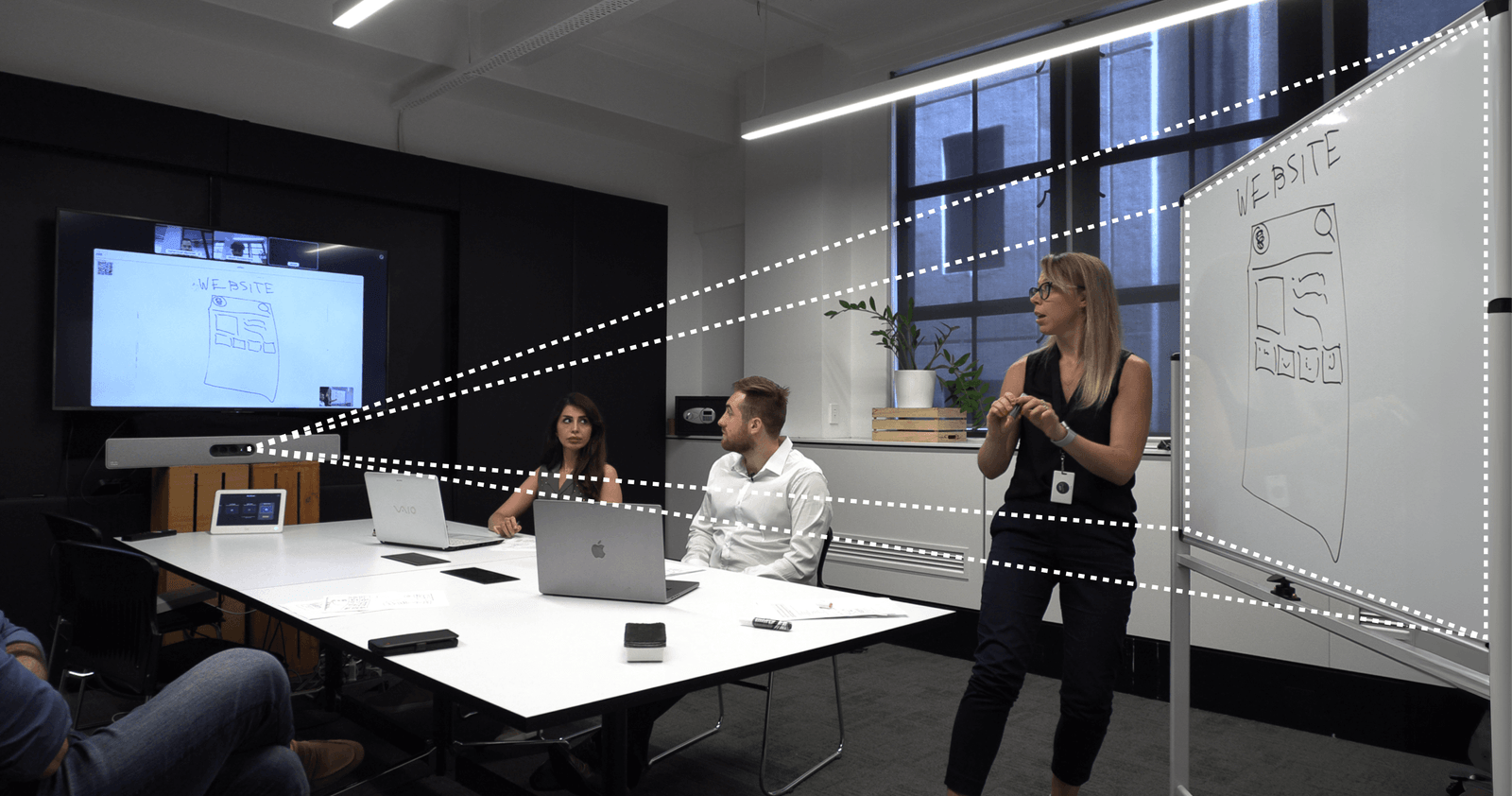
JIBB Room allows you to transform your physical meeting room whiteboard/glassboard into a digital whiteboard, using your Cisco meeting room camera.
- Share your whiteboard content inside your online meetings in real time.
- Invite others to join and annotate (no login or account required).
- Receive an Auto-Saved PDF copy of your whiteboard content via email.
2. Accessing the JIBB Room App
This section will guide you through launching the JIBB Room App on the Room Navigator (Touchscreen).
Microsoft Teams Rooms (MTR Mode) Instructions:
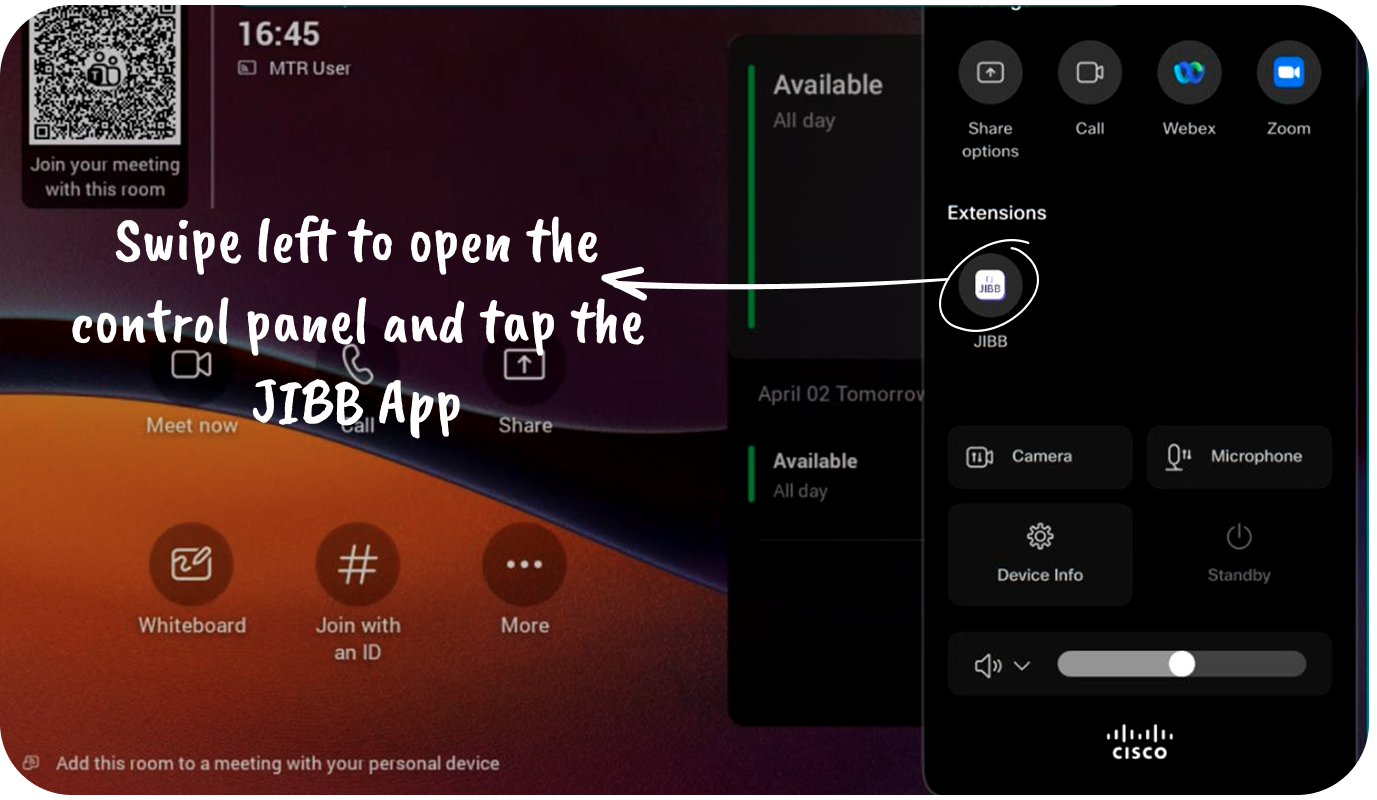
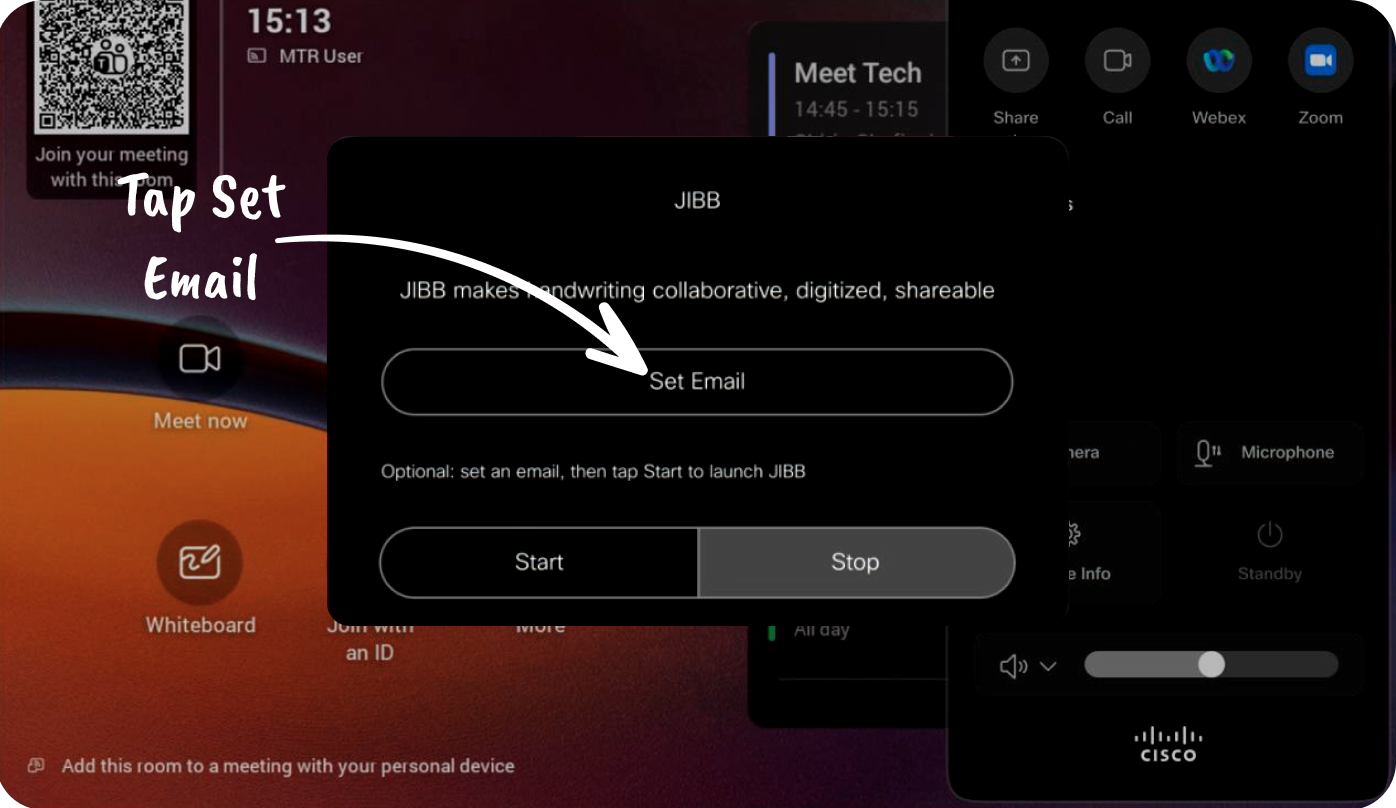
Swipe left on the home screen to open the Control Panel and tap the JIBB app.
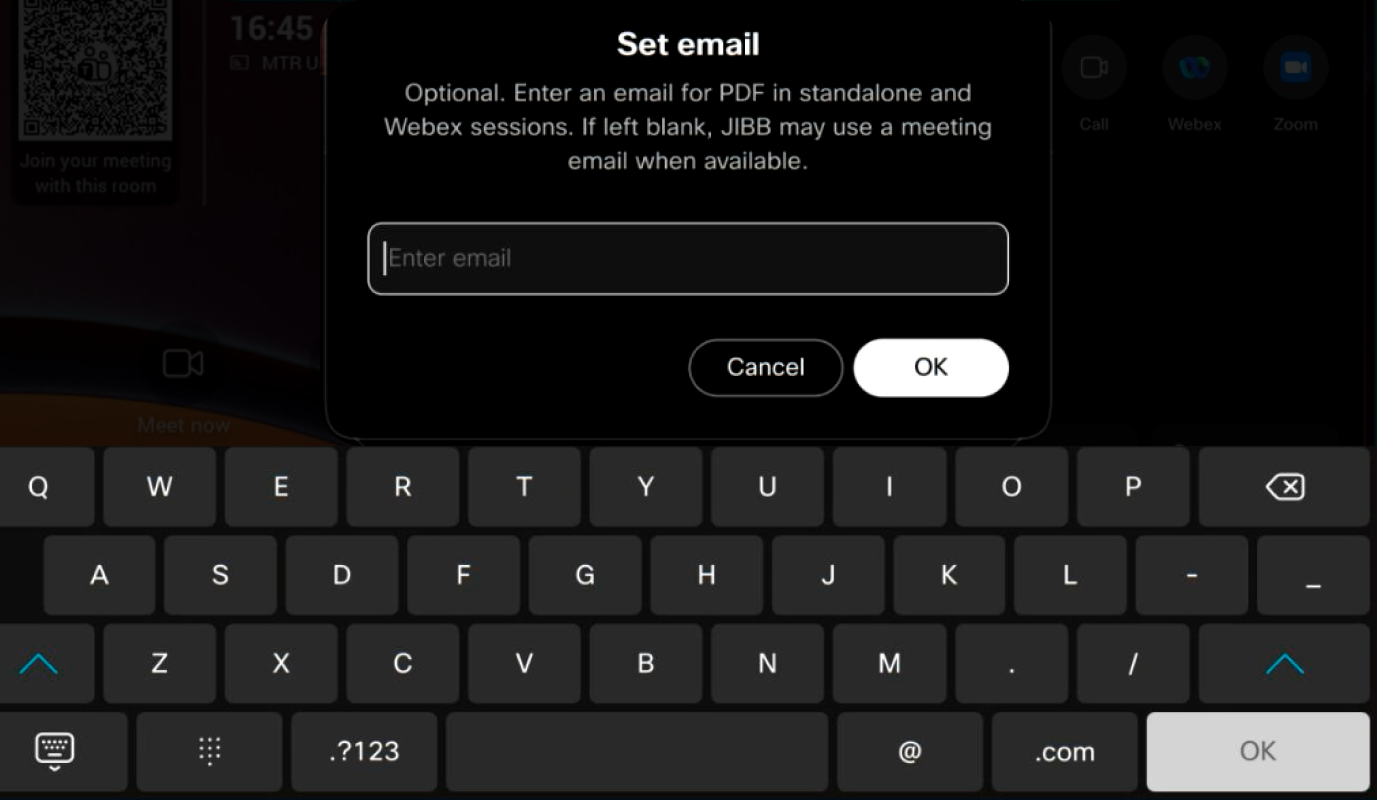
3. Setting your Auto-Save Email
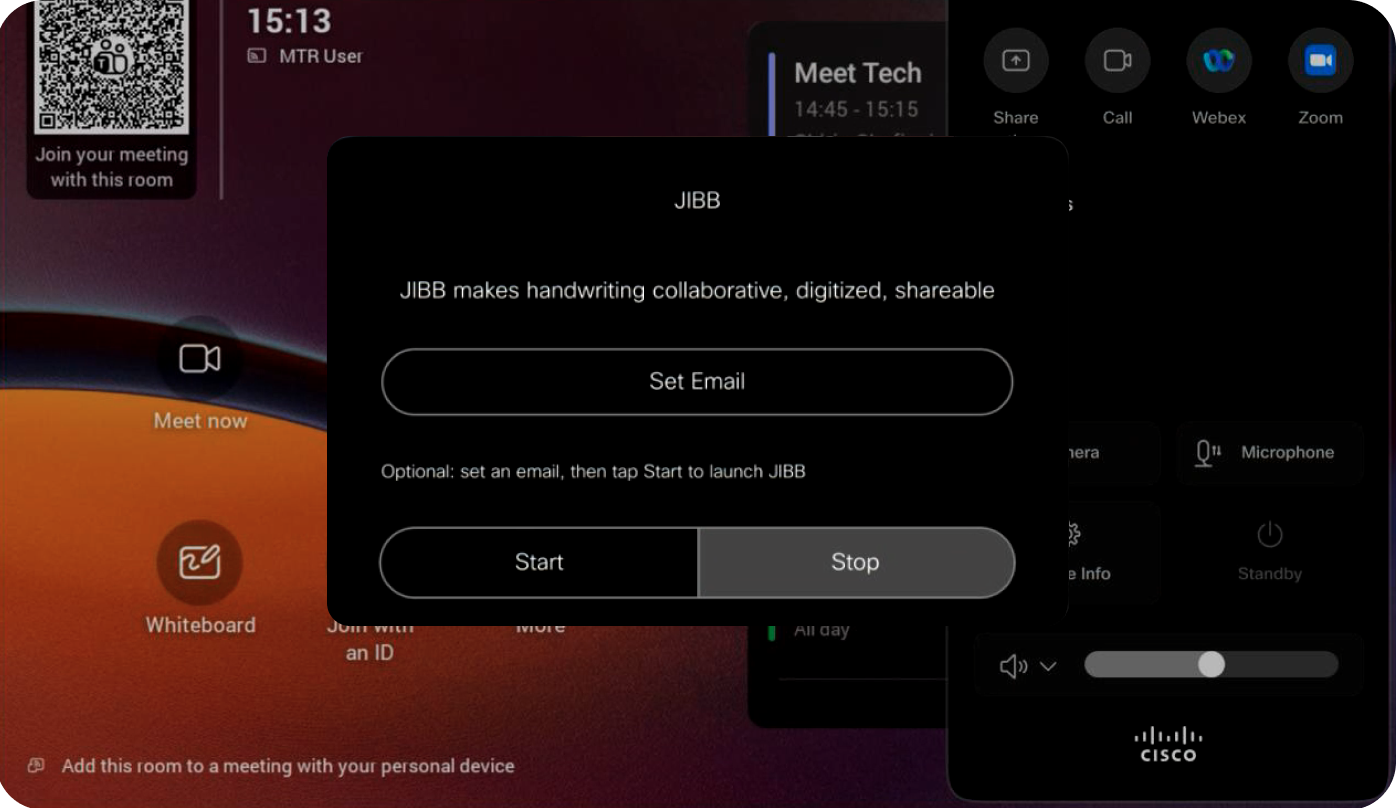
Before you start your JIBB Room session, enter your email address so JIBB can send you a PDF copy of your whiteboard content after your session ends.
4. Starting a JIBB Room Session
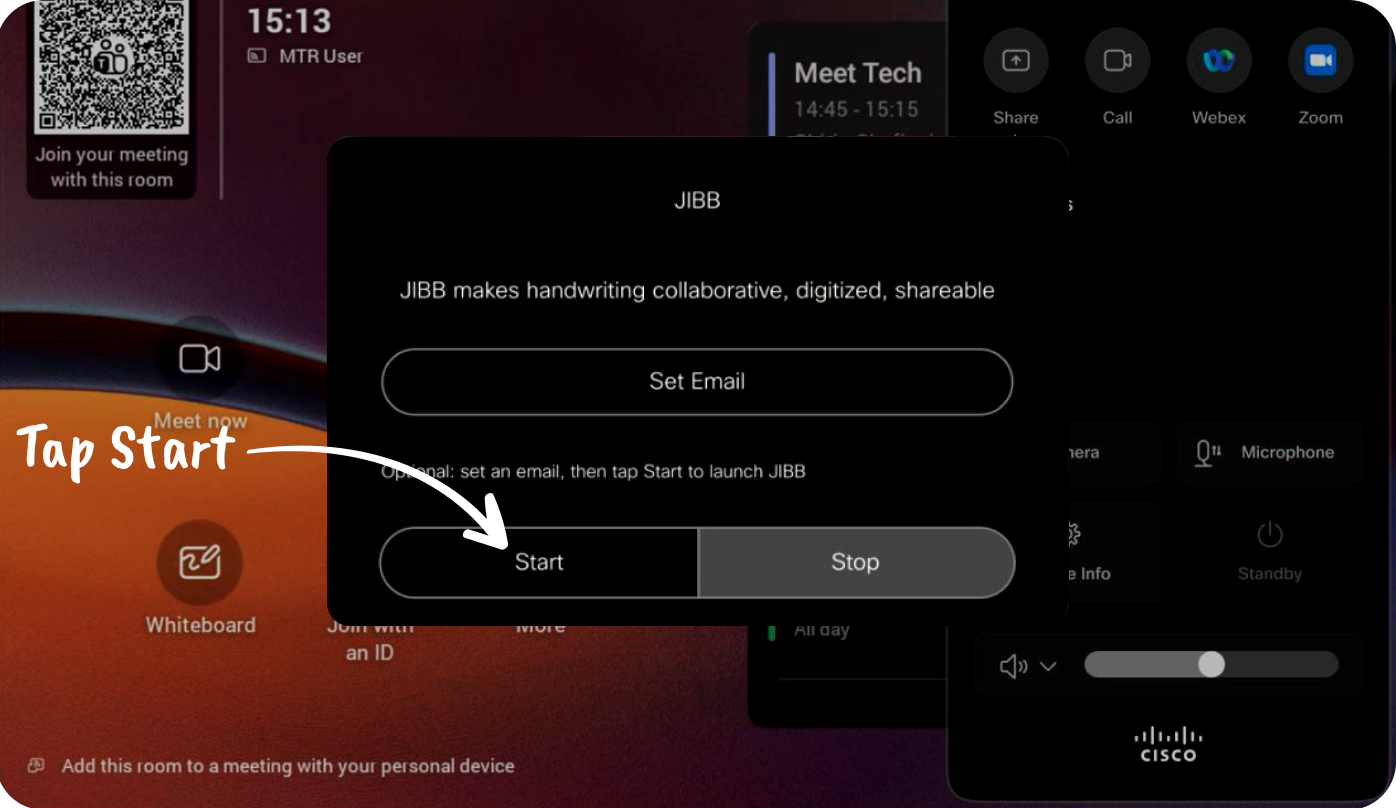
Once you've entered an Auto-Save email and you're ready to share your whiteboard, simply tap Start to launch a JIBB Room session.
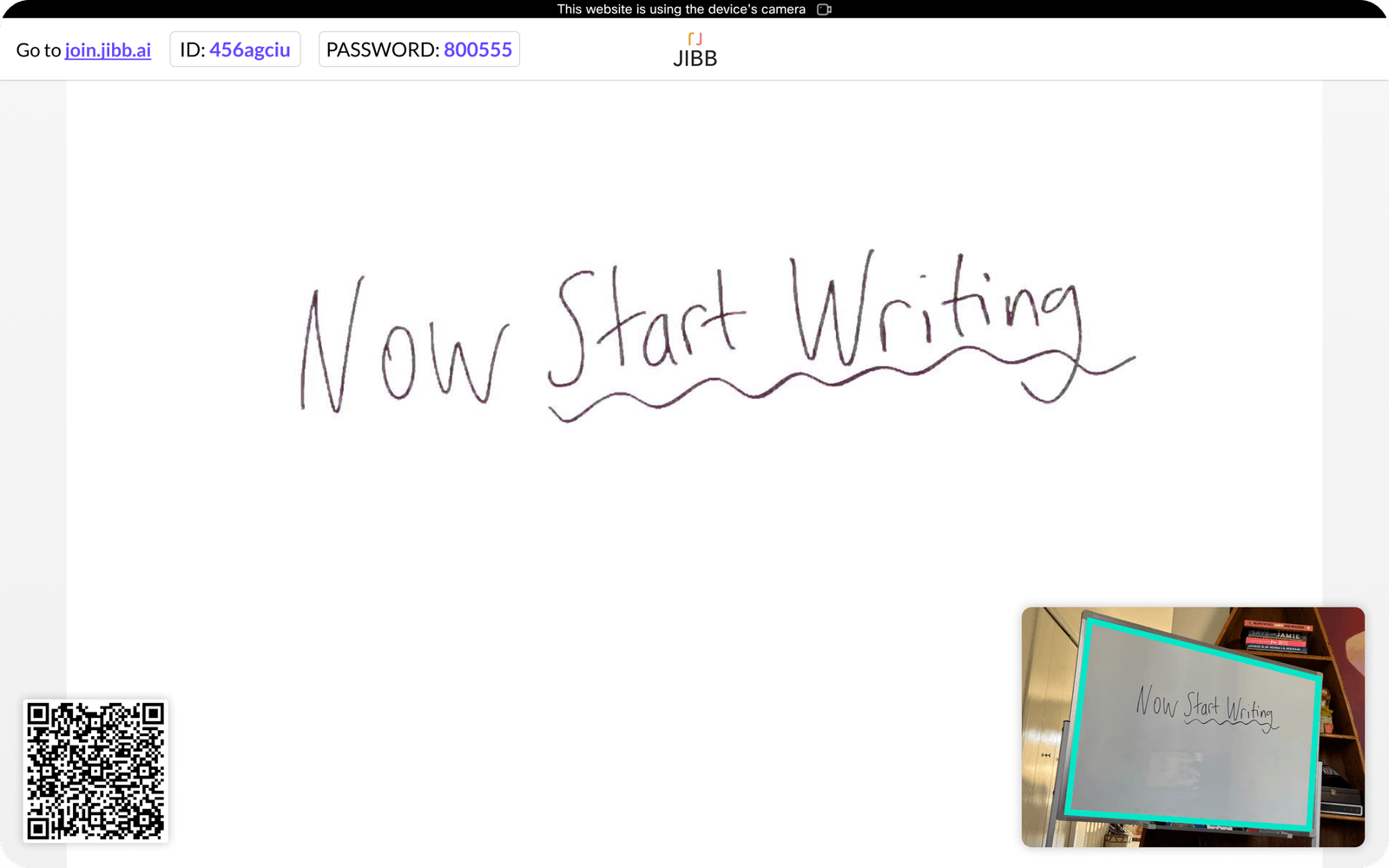
You will see a JIBB Room open on your meeting room TV/display. It will take a few seconds for the camera to load and detect your whiteboard.
Wait for JIBB Room to detect your whiteboard & start writing.
5. Sharing a JIBB Room Session in a Teams Meeting
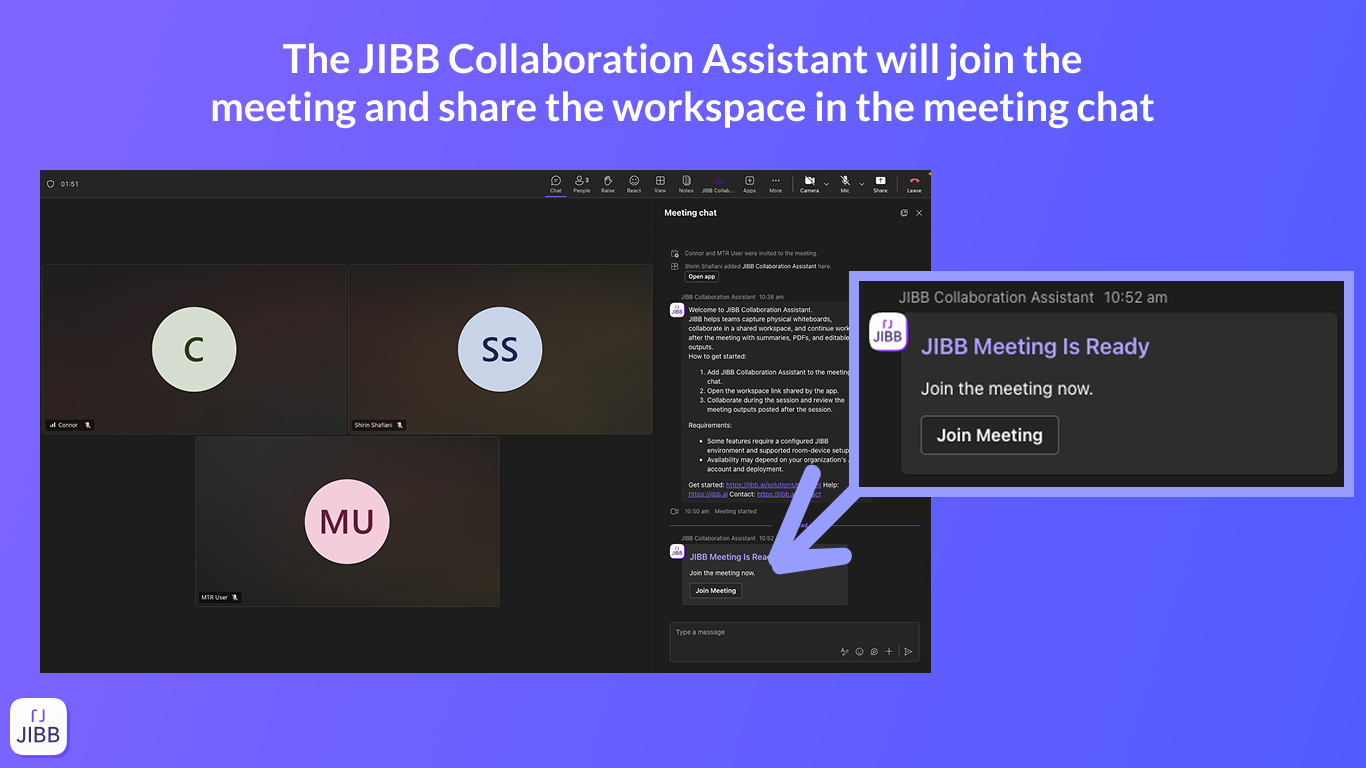
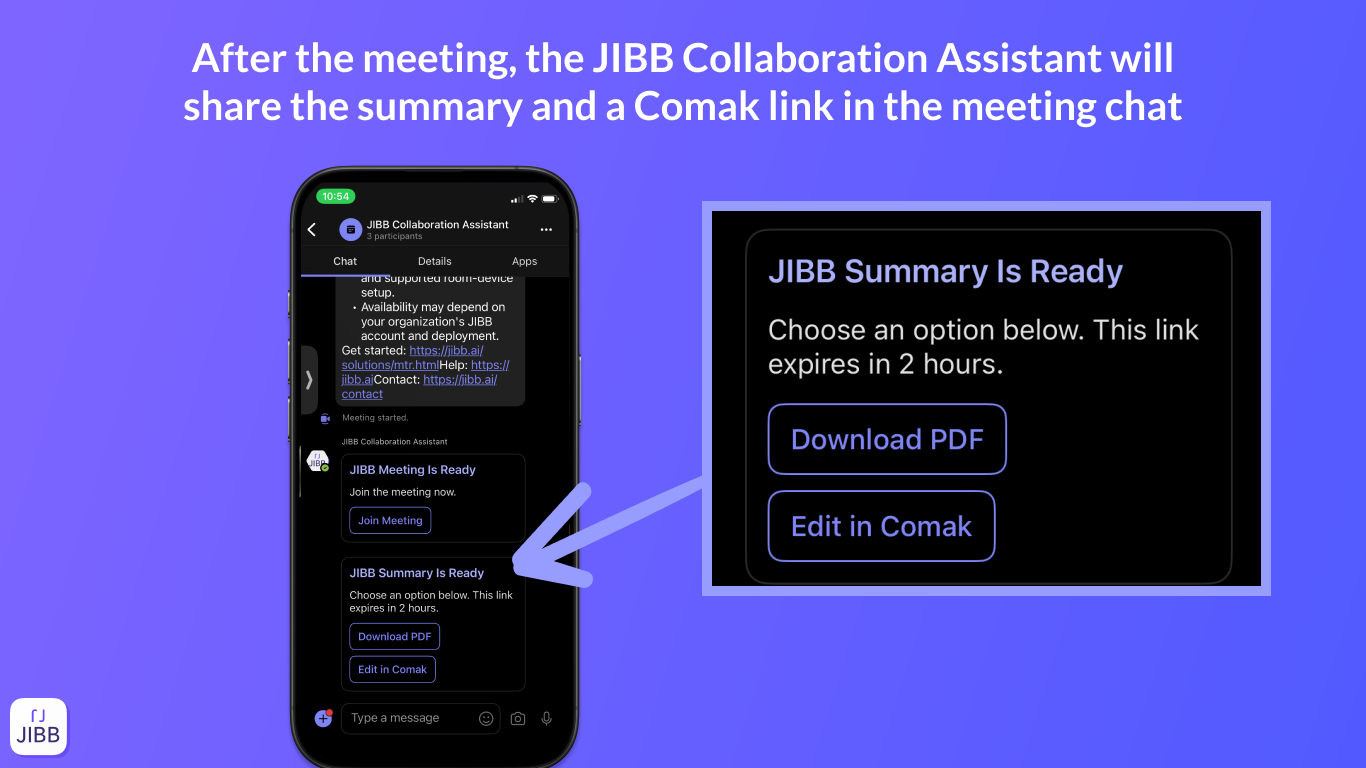
The JIBB Collaboration Assistant streamlines your MTR workflow by automatically posting the workspace invitation in the meeting chat, then sending the meeting summary and Comak link afterward.
The JIBB Collaboration Assistant joins the meeting and shares the workspace in the meeting chat.
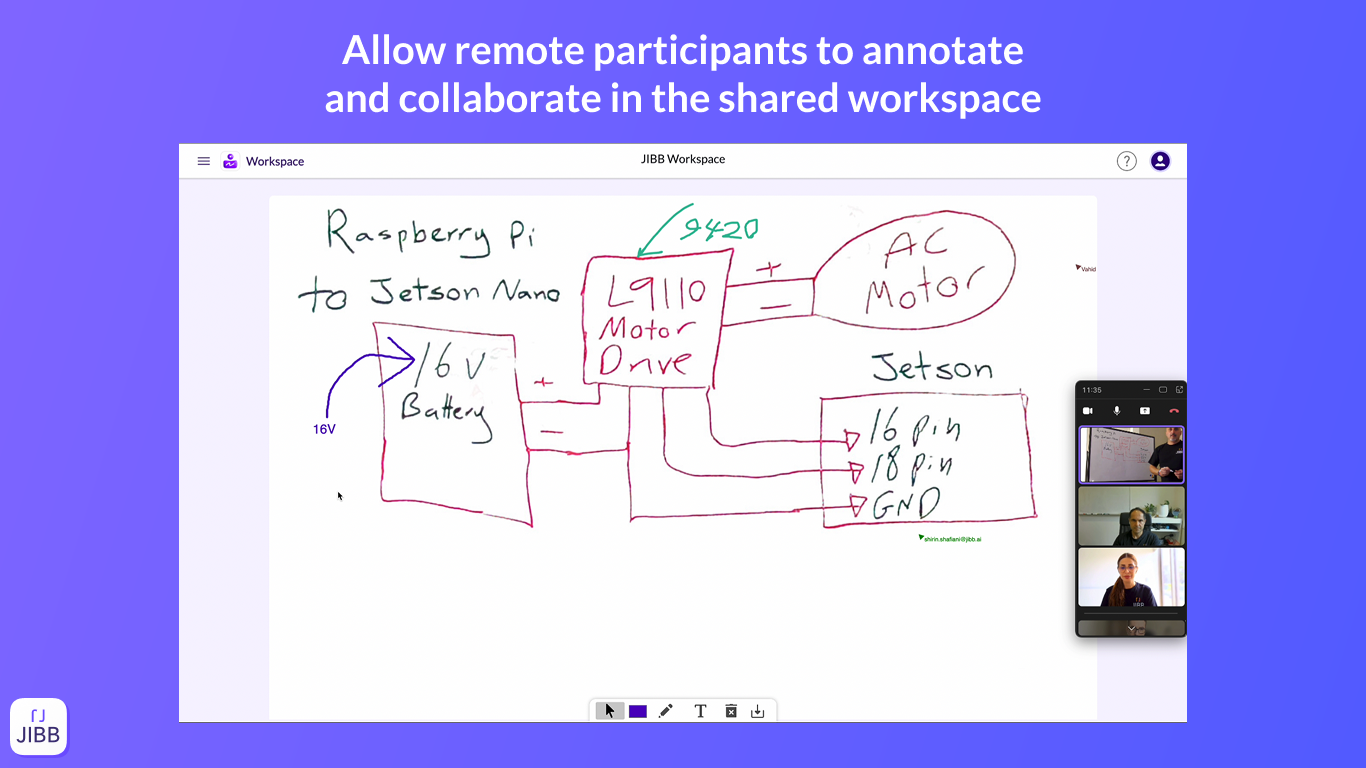
Remote participants can annotate and collaborate in the shared workspace.
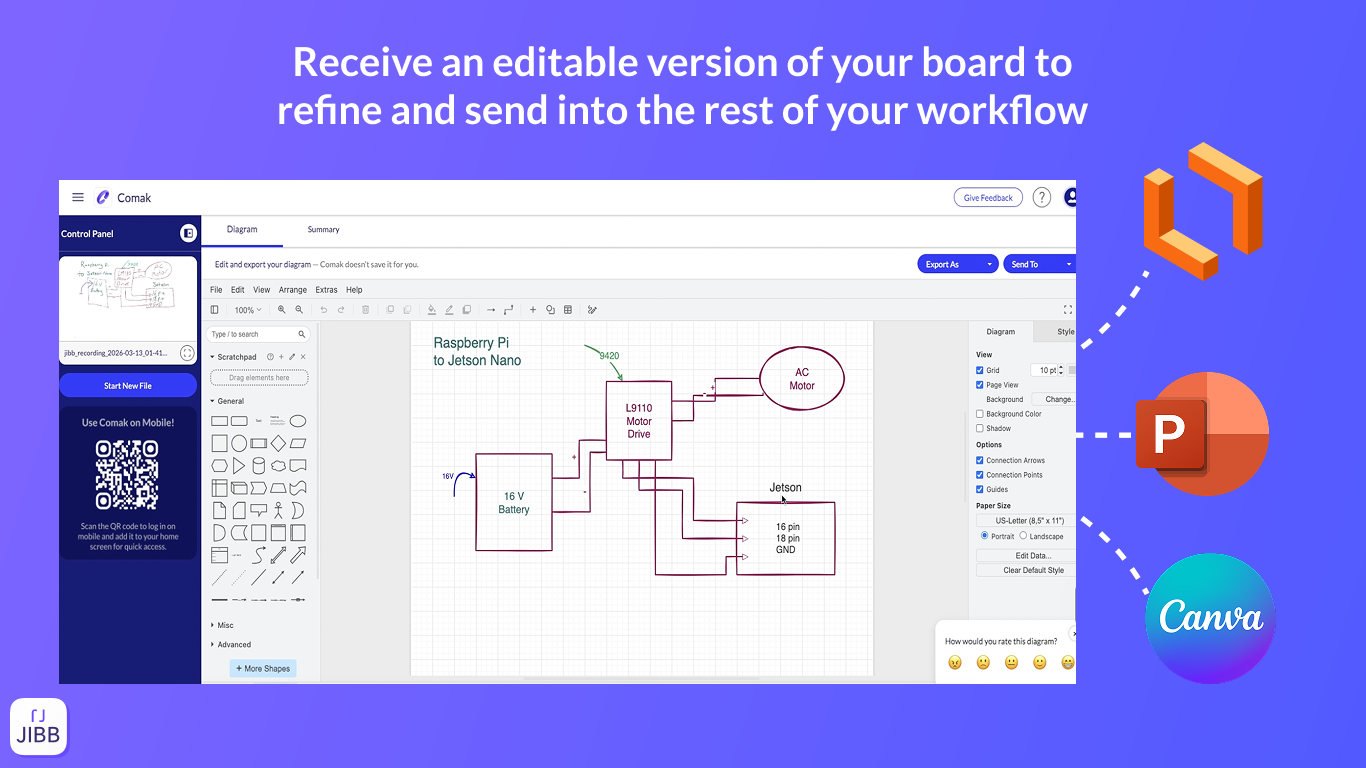
Receive an editable version of your board to refine and send into the rest of your workflow.
After the meeting, the Collaboration Assistant shares the summary and a Comak link in the meeting chat.
6. Tips & Best Practices
Everyone knows their way around a whiteboard. Follow these simple tips to get the most out of JIBB Room when you capture and share what you draw.
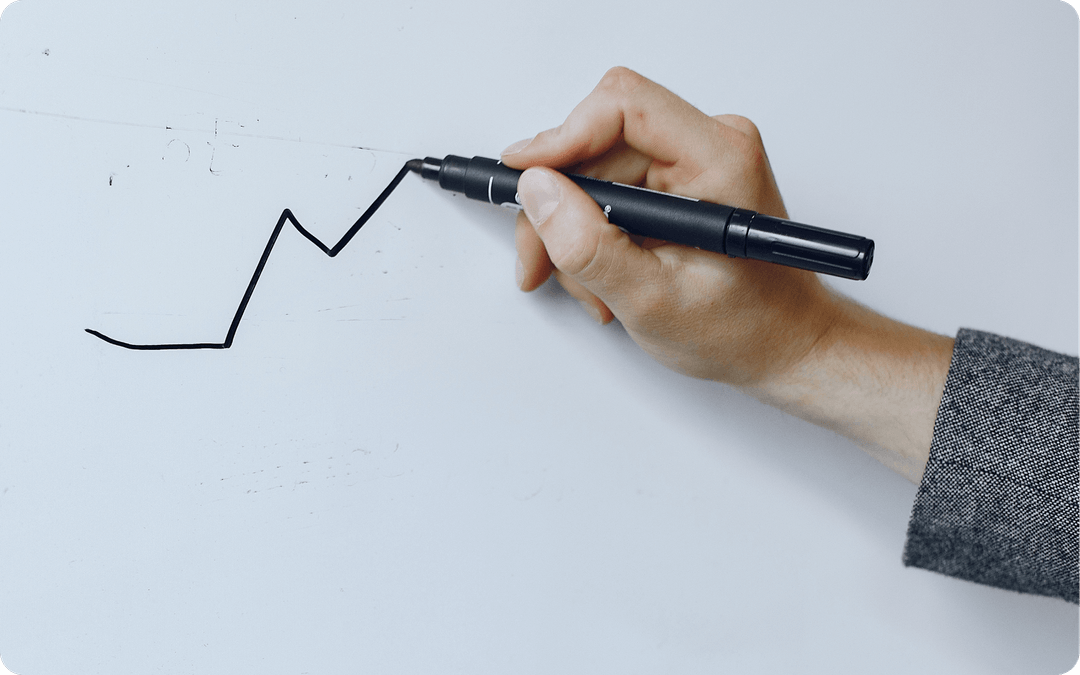
Write clearly
Using good quality whiteboard markers ensures your content is clear and easy to read, regardless of whether you're using JIBB Room.
Think of JIBB Room as an artificial eye that is looking at your whiteboard and translating your drawing into a digital rendering. If a human eye can't see what you're writing, neither will JIBB Room. We recommend using dark, bold colors to get the best results.

Keep your whiteboard clean
Whiteboards are generally most effective when you're starting with a fresh, blank surface, free of distracting smudges or the remains of a previous whiteboarding session still visible.
We recommend keeping your whiteboard as clean as possible before and while using JIBB Room, to avoid unwanted content from being displayed in your Workspace or in the Auto-Save PDF.
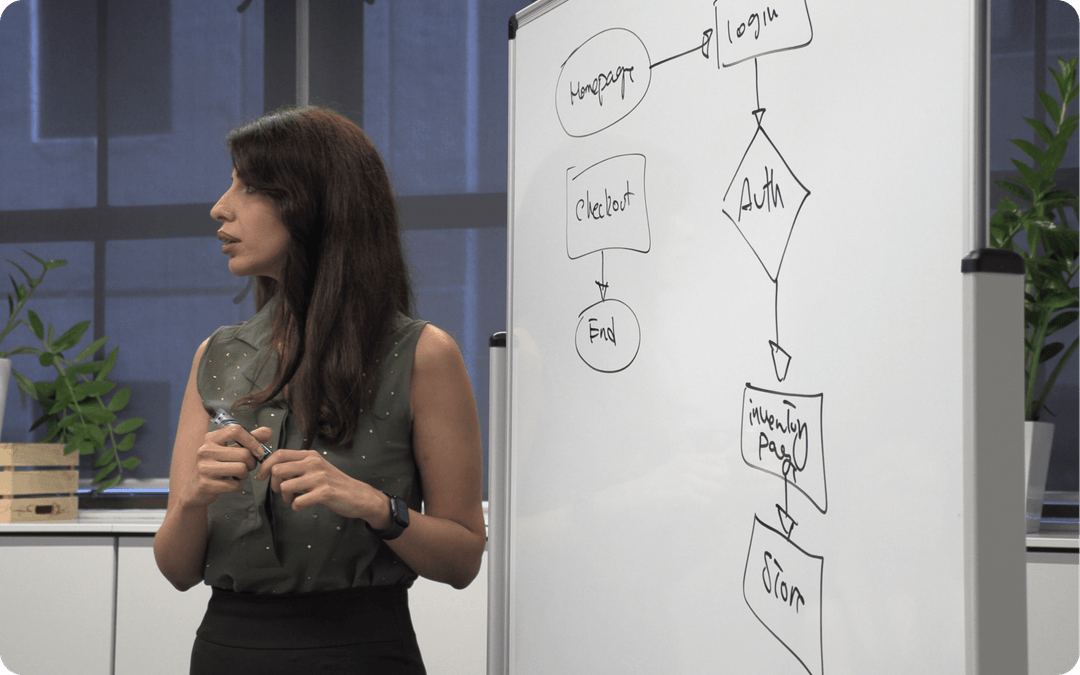
Don't block the camera
We know this sounds obvious, but don't forget that the camera needs to be able to see your whiteboard so JIBB Room can digitize your content.
We recommend you regularly move out of the view of the camera after you finish writing or erasing something, so JIBB Room can continually keep your content up to date. It's also good to make sure other people in the room or stationary objects are not blocking the camera's view.
Still Need Help?
If you didn’t find the answer here or need help with something more specific, our support team is ready to assist. Use the options below to get personal support or raise an issue.